Open Client area from the website header. An account lets you follow your own services, invoices, tickets and project requests. Registration alone does not create hosting or a purchase order. Use an email address you control and accurate billing information.
Choose Create an account on the sign-in page. Complete the required name, email, address, currency and other fields. Set a strong, unique password and review the details before submitting. Additional verification may appear depending on the site’s actual security settings.
Sign in through the native WHMCS form using your user email and password. The eye button only reveals or conceals the password on your device. Do not reveal it during screen sharing or save it on a shared or public computer.
If you forget the password, use the password-reset link and enter the email associated with your user. Follow the verification steps displayed by the system. Reset-message delivery depends on email configuration; a generic response does not prove an email has arrived.
If no message arrives, check spam and confirm the account email before repeatedly requesting another reset. Contact support if the issue continues. Never include your current password, a verification code or a reset link in a support ticket.
Check the selected account if you belong to several accounts or have been invited to a company account. Permissions depend on the invitation, so some invoices or services may be unavailable. Ask the account owner to review your access when needed.
Check before continuing
After signing in, verify the selected account and its service links. Sign out from the account menu when finished on a shared device. If an unexpected account appears, stop before editing details or paying, sign out and confirm the intended account with support.
Related links
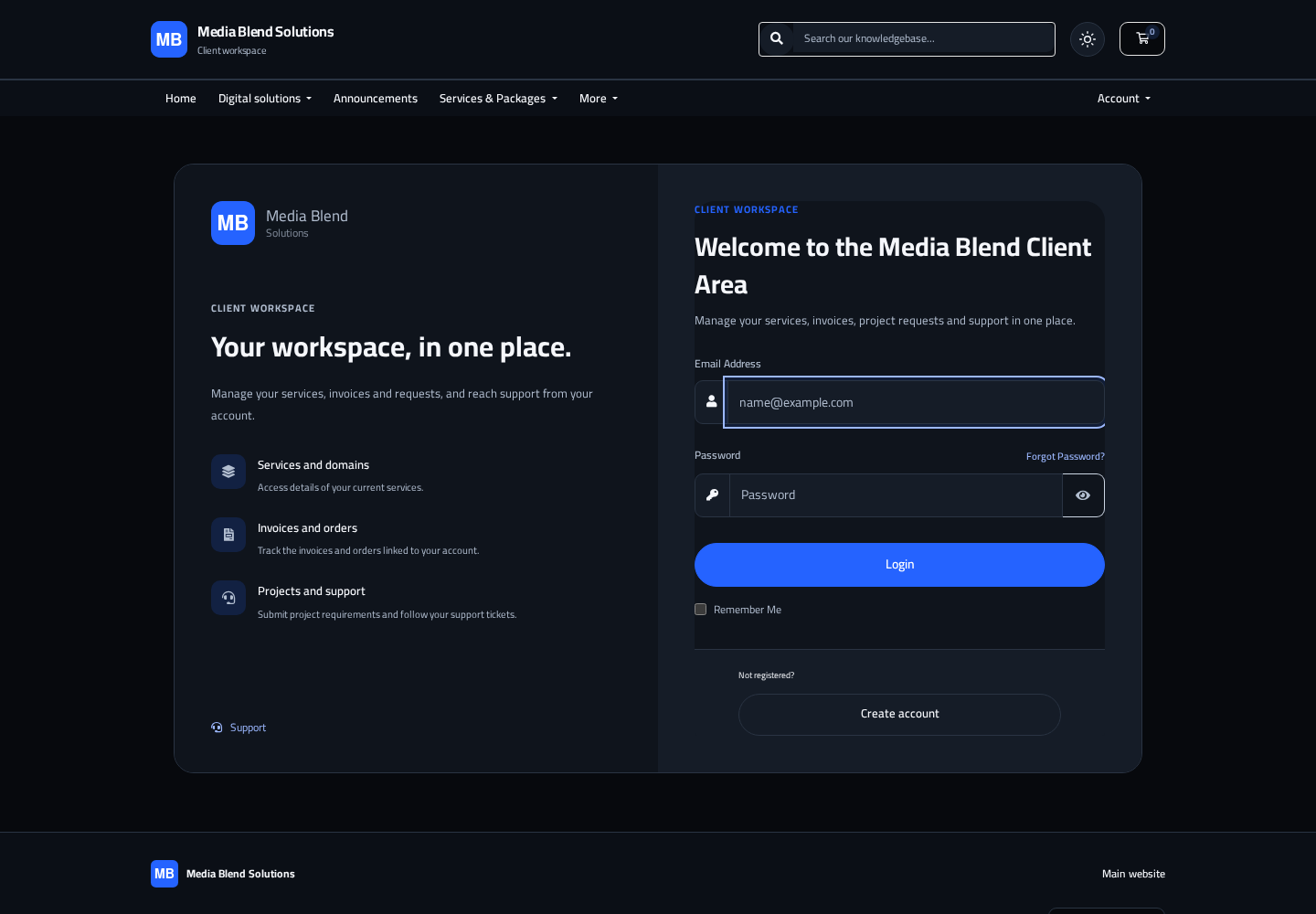 Actual public interface captured on 14 October 2026, without account data.