A ticket keeps the discussion inside your account and provides a record of replies instead of posting service information publicly. Use it for technical support or an invoice question, and describe the issue precisely without exposing unrelated data.
Sign in, open Support and choose a new ticket. Select the appropriate available department under the site’s actual configuration. Use a specific subject, such as a page failure or invoice item question, instead of a generic request that hides the purpose.
Identify the service, issue, start time and reproduction steps. Explain the expected result and what actually happened. Mention whether it occurs on mobile, desktop or a particular connection. These details are more useful than repeatedly asking for help without context.
Before attaching a screenshot, mask private email addresses, personal details, card information, codes, passwords and application keys. Do not attach an entire database or log that may contain customer data. Use only file types and sizes accepted by the native form.
For a payment enquiry, the invoice reference, general message and time are sufficient. For a new project, use Project requests with its scope. A project request does not create a purchase order or invoice or replace necessary agreement on delivery details.
Follow replies from your ticket list and add information to the same thread. Do not rely solely on email notifications, which need working mail configuration. An invited user’s permission to read or reply to tickets can differ according to the account.
Check before continuing
If a ticket disappears after switching accounts, verify the selected account and permissions rather than guessing another person’s ticket reference. No unapproved response-time guarantee is advertised. Once resolved, record the result so the discussion remains clear to you and support.
Related links
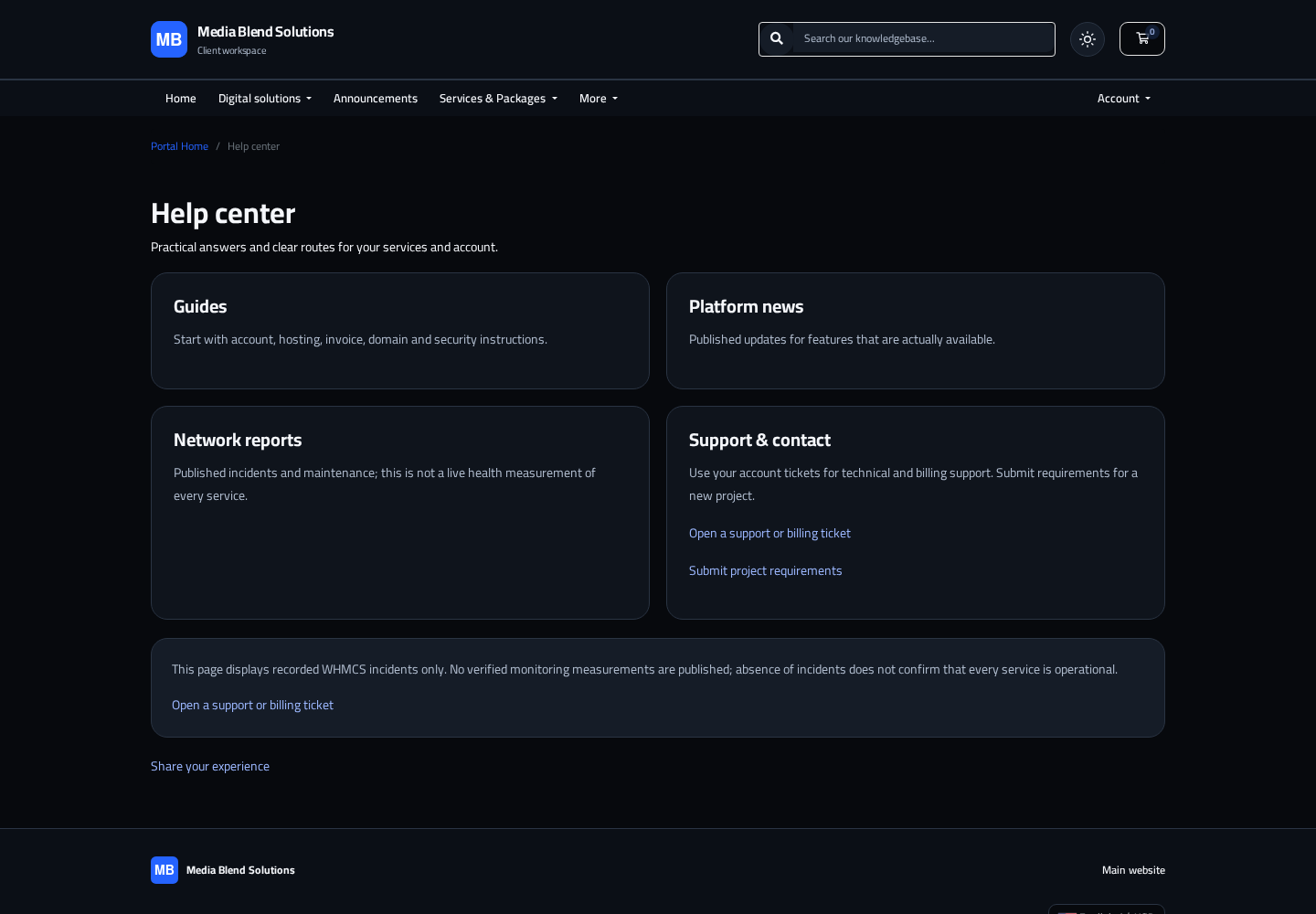 Actual public interface captured on 14 October 2026, without account data.